
The BeamMP auth key, explained
One free key from BeamMP puts your server on the public server browser. Here is how to get one, where it goes, and — the part most guides skip — how your friends play on your server right now, with no key at all.
No new auth keys can be issued at the moment
BeamMP's Keymaster has been on a maintenance page for a while, and it is the only place a server key can be made — so nobody can get one right now, from any host. Nothing is wrong with your server or your account.
Your server still runs and is still fully playable. The only thing a missing key costs you is the public server browser listing.
How your friends join todayWhat a missing key actually costs you
Your server runs
Boots, loads mods and maps, runs plugins. A key changes none of that.
Friends can join
They use Direct Connect with your address instead of finding you in the list.
Strangers cannot find you
The public server browser is the one thing that needs a key. That is the whole trade.
Play on your server right now
Direct Connect is built into the BeamMP launcher. It skips the server browser entirely and connects straight to an address you type in — which is exactly what you want when your server is unlisted, private, or waiting on a key.
- 1
Find your server address
It looks like
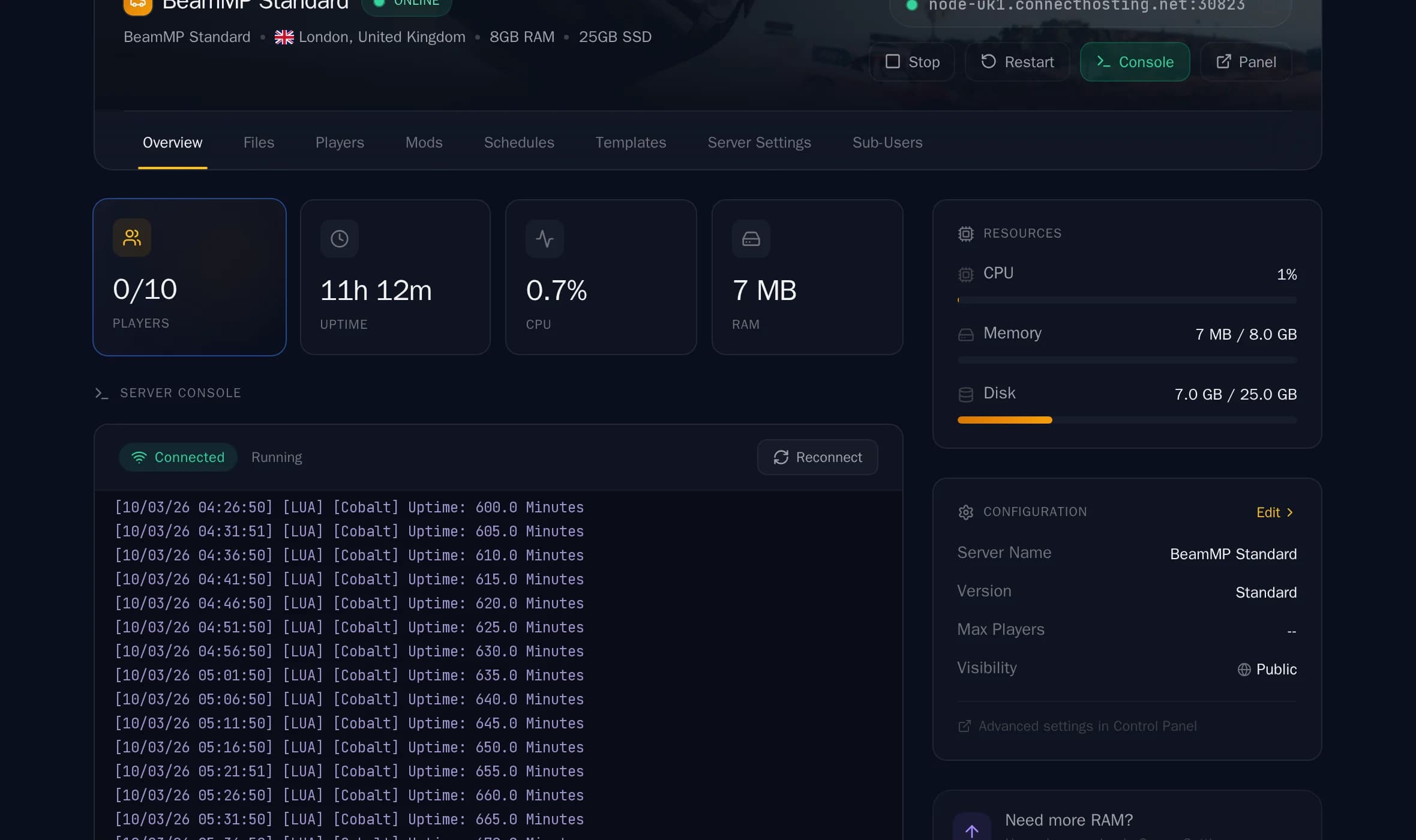
node-uk1.connecthosting.net:30823— a hostname or IP, a colon, then the port. On a Connect server it is at the top of the Overview tab, one click to copy. Self-hosting? It is your public IP plus the Port from yourServerConfig.toml. - 2
Open BeamMP through the launcher
Start the BeamMP launcher first, then let it launch BeamNG.drive. Opening the game straight from Steam gets you single-player with no multiplayer menu.
- 3
MULTIPLAYER → Direct Connect
From the main menu choose MULTIPLAYER, then Direct Connect instead of picking from the server list.
- 4
Paste the address and connect
Type the whole thing including the port —
address:port— and hit Connect. Send the same line to everyone you play with; it does not change.
Set the server to private while you have no key
This one catches people out. A server marked public with no key — or a bad one — never finishes registering with BeamMP, and everyone who tries to join is told the server is still starting, forever. Flip it to private and Direct Connect works immediately. A private server is not locked: it is simply unlisted, and anyone with the address can walk in. If you want it genuinely closed, turn on the whitelist — BeamMP has no server password, so unlisted plus a whitelist is how a private server is done.
So what is the key for?
It gets you listed
Your server sends the key with every heartbeat to BeamMP. A key BeamMP accepts is what puts you in the public browser where strangers can find you.
It proves the server is yours
The key ties the listing to your BeamMP account, so nobody else can publish a server under your name.
It is free, and one per server
BeamMP does not charge for keys and never has. Running two servers just means creating two keys.
Creating your key at the Keymaster
Keep this for later — the Keymaster is offline today, so these steps will not work until BeamMP brings it back. Nothing about them changes when it does.
- 1
Go to keymaster.beammp.com
The Keymaster is BeamMP's own site and the only place keys come from. No host, including us, can issue one.
Currently showing a maintenance page — we are watching for it to return.
- 2
Sign in with your BeamMP forum account
The same login you use to play BeamMP — not a separate hosting account. If you have never made one, it is free and takes a minute.
- 3
Create a key for this server
You will be asked for two things:
- —Server name, which is what players will see in the browser.
- —Server IP, which must be the address the server actually runs on. Get this wrong and the listing silently never appears.
- 4
Copy the key, all of it
You get a UUID — 36 characters, five groups split by hyphens. Select the whole thing. A key that is one character short, or that picked up a quote mark or a trailing space, fails in exactly the same way as no key at all.
SHAPE
xxxxxxxx-xxxx-xxxx-xxxx-xxxxxxxxxxxx
Where the key goes
On a Connect server — one field, no restart to remember
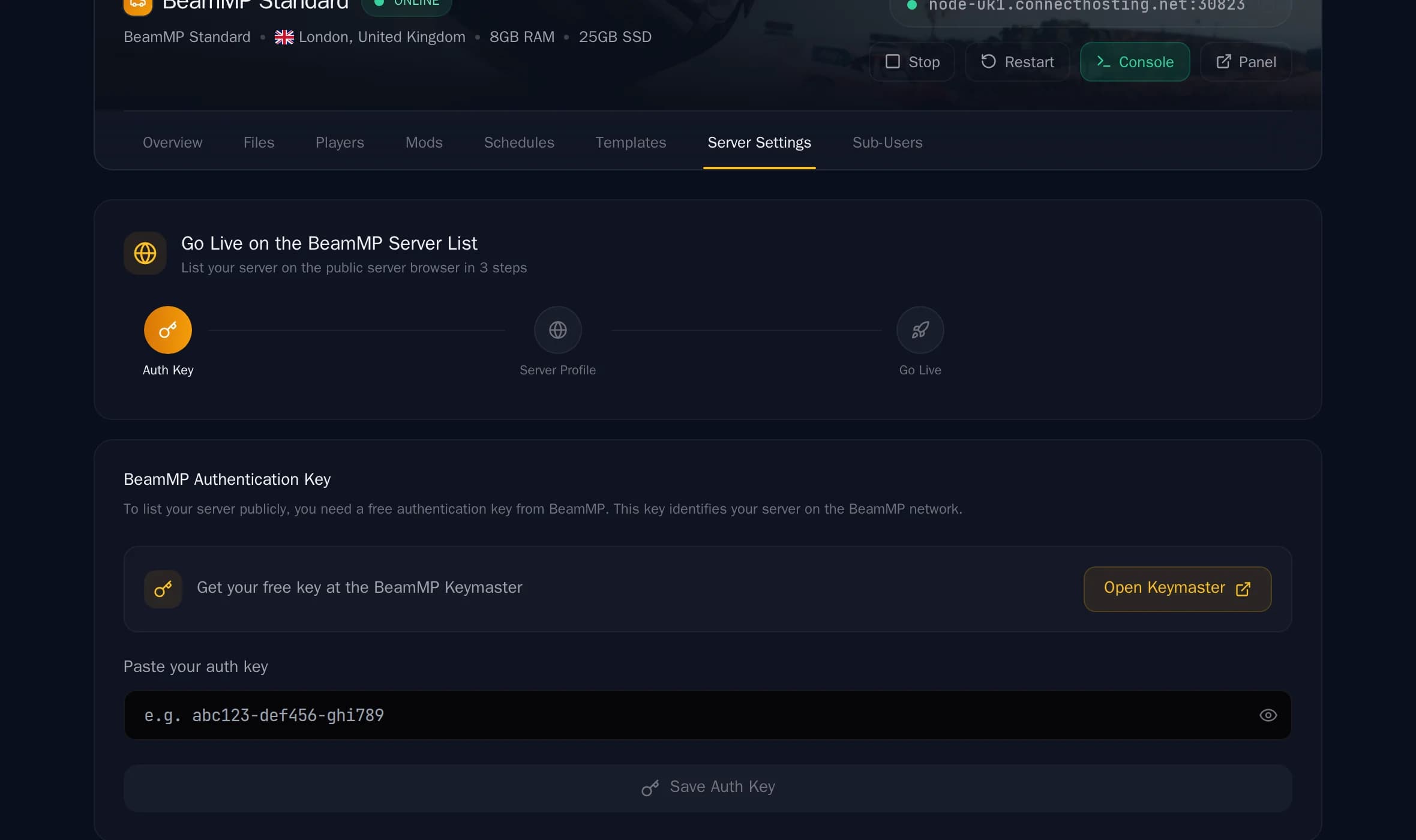
Open your server, go to Server Settings and follow the Go Live wizard: paste the key, save, and we write it to the config and restart the server for you. The wizard then walks you through the server profile and flipping the listing public. If you bought within the last few minutes, the checkout success page has the same field.
Self-hosting — edit ServerConfig.toml
The file sits next to the BeamMP server executable. Stop the server, edit it, start it again — BeamMP reads the config at boot, so a running server will not pick up a new key.
[General]
AuthKey = "xxxxxxxx-xxxx-xxxx-xxxx-xxxxxxxxxxxx"
Name = "My BeamMP Server"
Port = 30814
MaxPlayers = 10
Private = false
Keep the quotes around the key, and only the quotes — no spaces inside them. Private = false is what asks to be listed, and it only works once the key is accepted.
Restart, then give it a few minutes. The key is read at boot and BeamMP only re-checks the list periodically. A server that is not in the browser thirty seconds after a restart is normal; one that is still missing after ten minutes is not.
Common problems
My server is not showing in the server list
Work down the list: is the key pasted in full, with no quotes or trailing space; has the server been restarted since; is the server set to public; and has it been more than a few minutes. If all four are yes, the key itself may have been revoked or created against a different IP — make a fresh one.
Everyone who joins is told "the server is still starting"
That is the signature of a public server whose key BeamMP will not accept. The server is running fine; it simply never finished registering, so it turns players away. Set it to private and players can join by Direct Connect straight away, then sort the key out without any downtime.
It says my auth key is invalid
Almost always a copy-paste problem rather than a bad key. The key is 36 characters in five hyphen-separated groups. Watch for a missing first or last character, a quote mark that came along for the ride, or an invisible trailing space.
The Keymaster will not load or will not log me in
It uses your BeamMP forum account, the same one you play with, not a hosting account. If the site itself will not load it is down for maintenance — that has happened for long stretches. Your server keeps running and stays joinable by Direct Connect the whole time.
Can I reuse one key across two servers?
No — one key, one server. Create a second key at the Keymaster; they are free and there is no limit worth worrying about.
Is it safe to share my key?
No. Treat it like a password. Anyone holding it can list a server as yours. Never paste it into a Discord screenshot, a support thread, or a public config — we will never ask you for it either.

The key is the same. Everything around it is not.
No port forwarding, a fixed address that never changes, a server that stays up when you close the game, mods and maps installed from a dashboard, and the auth key pasted into one field instead of a config file. While the Keymaster is down your friends join by Direct Connect, and the key drops in from the dashboard the moment BeamMP brings it back.
- Free tier: 1GB RAM, 3 player slots, no card and no time limit — sign in with Discord.
- Paid plans: more RAM for mods and players, nine regions, backups, online in about a minute.